

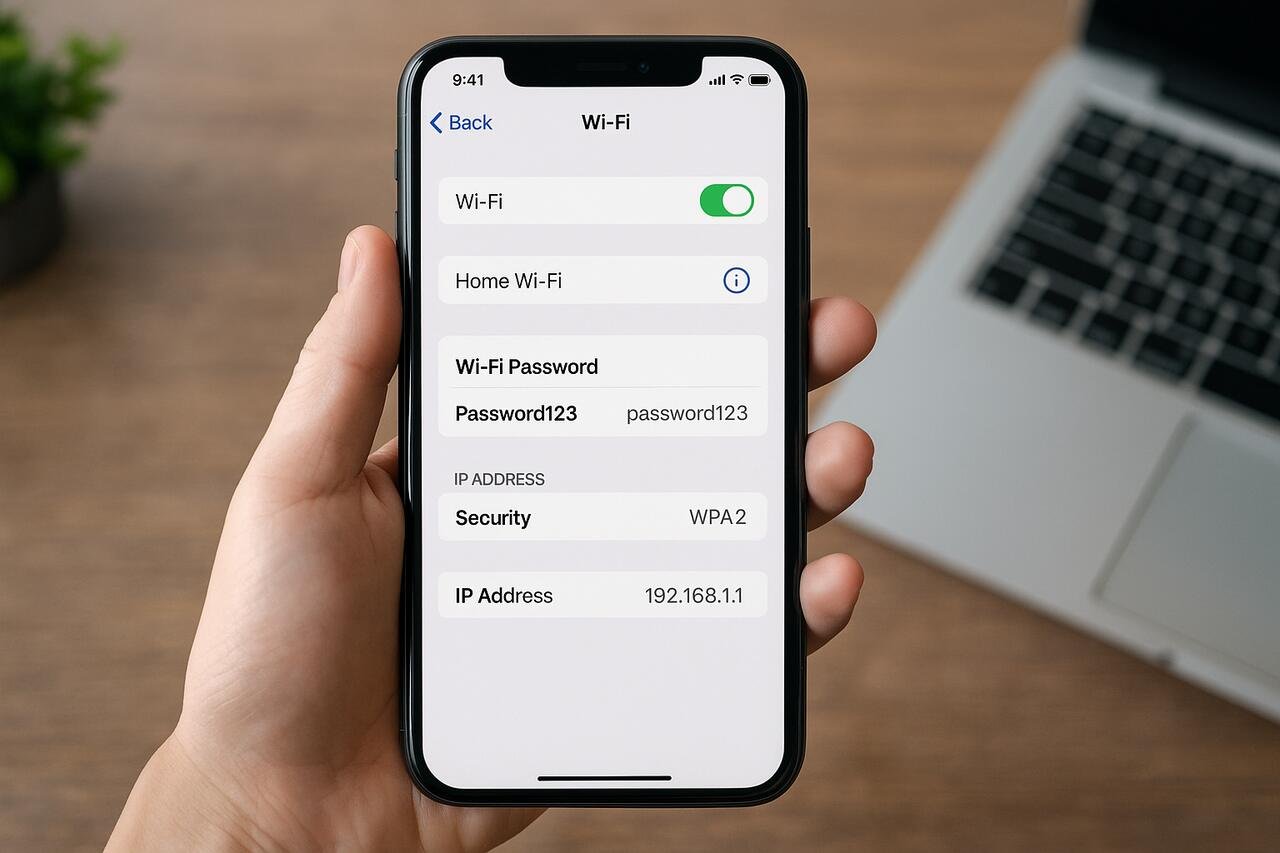
Seeing the WiFi password on an iPhone has become increasingly important for users who switch devices, share connections with family, or manage multiple networks throughout the day. With newer versions of iOS offering built-in tools to reveal stored WiFi passwords, the process has grown more practical, secure, and reliable. This guide shows how to view saved WiFi passwords, manage connected networks, use iCloud Keychain syncing, troubleshoot visibility problems, and ensure your device settings preserve access when needed. Each step is structured to give clarity, action, and deeper understanding of the systems involved.
Gather the Required Access Permissions
The first step in viewing a WiFi password on an iPhone is ensuring you have the correct access permissions. Without proper device authentication such as Face ID, Touch ID, or passcode validation, the system will not reveal stored passwords. This requirement protects your private network settings and ensures no one else can access your sensitive information. Once authentication is confirmed, you can explore the Settings app to manage and reveal wireless connection details.
To enable successful visibility, the iPhone must meet basic security criteria including updated software, active authentication features, and appropriate control center access. These elements form a security framework that supports password management throughout the device. When any of these components is missing or outdated, the visibility option may fail to appear. Ensuring your device matches these conditions significantly increases your chances of accessing saved passwords.
When proper permissions are in place, the iPhone automatically syncs and stores connection details so that the network password can be retrieved when needed. This process becomes especially important for users who connect to many networks over time, as it prevents the need to recall or re-enter the same password repeatedly.
Confirm Device Security Settings
Make sure your iPhone has Face ID, Touch ID, or a passcode enabled. This ensures that password viewing only occurs when verified by the user. Without these features active, the iPhone will not allow access to saved WiFi credentials.
Check for iOS Software Updates
Confirm that your iPhone runs the most recent version of iOS. Updated software ensures compatibility with the WiFi password display feature and removes any system-level issues that might limit visibility.
Open the WiFi Settings on Your iPhone
After securing your device permissions, navigate to the WiFi section inside the Settings app. This area houses all saved networks, active connections, and additional configuration tools. By accessing this section, your iPhone displays available networks and identifies the one currently in use. From this screen, the user can proceed to reveal the password with only a few taps.
Opening the WiFi settings also provides access to additional wireless information including network type, signal strength indication, automatic connection controls, and security protocol references. Each of these components helps you manage the network more effectively and improves your understanding of how your device interacts with wireless systems around you.
As you move deeper into the WiFi settings, your iPhone loads all saved networks based on prior connections and iCloud synchronization. This list allows you to retrieve passwords for networks you are not currently connected to but have used before, which is particularly helpful when traveling or switching between work and home environments.
Locate the Connected Network
Inside the WiFi settings, find the network with the checkmark beside it. This indicates your iPhone is currently connected and able to provide password details when authentication is provided.
Explore Saved Network List
Scroll down to view all previously joined networks. These networks store their passwords if you have used them before, making retrieval easier even when you are no longer connected.
Access the Network Information Panel
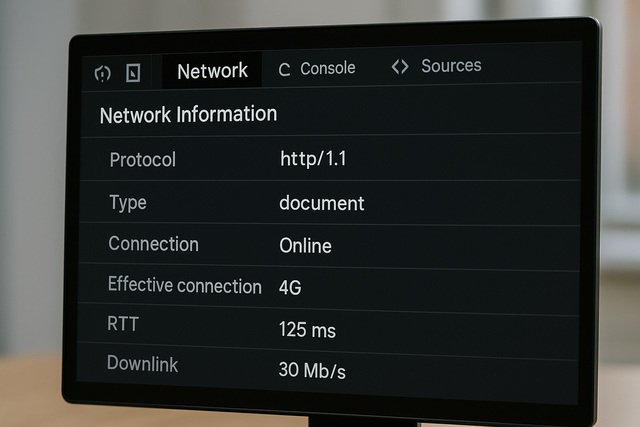
Once inside the WiFi settings, tapping the information icon next to a network reveals a deeper configuration panel. This section contains technical details that support password visibility and connection management. It includes IP assignments, DNS configurations, auto-join settings, and other information that demonstrates how the iPhone communicates with the selected wireless network.
The network information panel plays a central role because it contains the hidden structure that allows password access. By entering this area, the user gains access to a tightly organized set of details designed to help manage or troubleshoot connection issues. It also acts as the bridge between standard WiFi configuration and advanced wireless control.
Navigating this panel also helps you better understand the architecture of your wireless setup. Whether you are reviewing router information, examining connection details, or preparing to share the password, this section acts as the core location where essential network components are presented.
Identify the Information Icon
The small circle with an “i” initiates access to the detailed configuration panel. Tapping it opens the full set of connection details.
Review Connection Details
Inside this panel, explore information related to network privacy features, router data, and configuration options that appear before the password field becomes available.
Reveal the Password Using Authentication
After accessing the configuration panel, the iPhone provides a dedicated “Password” field that can be revealed using authentication. Tapping the field brings up Face ID, Touch ID, or passcode verification. Once authenticated, the password becomes visible in plain text and can be copied or shared as needed.
This step serves as a secure gateway to ensure that only the authorized user can access stored WiFi credentials. The authentication process leverages your personal security method to confirm identity and protect private network information. This mechanism strengthens overall wireless security by preventing unauthorized access.
Once the password is revealed, the iPhone offers options to copy, share, or re-enter it on another device. This flexibility allows users to manage their connections seamlessly without needing to remember or search for written versions of the password. It also enables quick sharing with trusted individuals in home, office, and travel scenarios.
Authenticate Your Identity
Use Face ID, Touch ID, or a device passcode to confirm your identity. The system will not display the password until authentication is complete.
Copy the Password for Easy Sharing
Once visible, tap the copy function to quickly share the password through text messages, AirDrop, or notes.
Sync Network Passwords Through iCloud Keychain
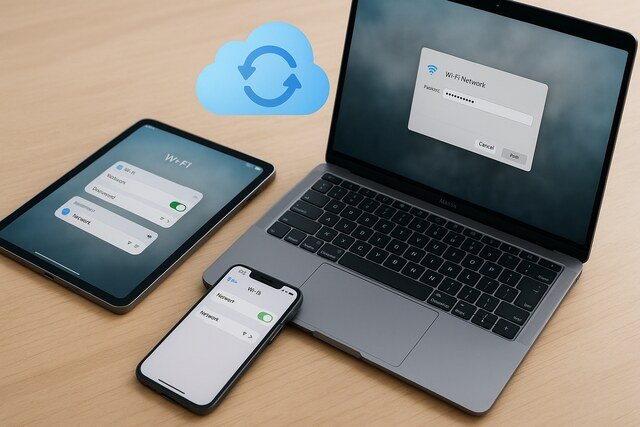
When you use multiple Apple devices, syncing passwords through iCloud Keychain ensures seamless access across your entire ecosystem. This feature automatically stores and distributes saved WiFi passwords to your iPhone, iPad, and Mac without the need to manually re-enter them. As a result, your connected devices function together more smoothly and maintain strong wireless continuity.
Enabling iCloud Keychain ensures that every password you store is encrypted and securely delivered across your devices. This helps prevent situations where you forget your home or work WiFi passwords when switching between devices. It also keeps your wireless experience uniform by restoring saved networks whenever you sign in with your Apple ID.
Using iCloud Keychain also reduces the need to repeat password-recovery steps. Even if you wipe your device or set up a new one, your passwords remain accessible after signing into your Apple ID. This makes it a reliable tool for long-term password management.
Turn On iCloud Keychain
Go to your Apple ID settings and enable the iCloud Keychain option. This activates cross-device password syncing.
Verify Password Syncing on Other Devices
Check your iPad or Mac to confirm that the stored WiFi password displays automatically after syncing.
Troubleshoot When the Password Does Not Appear
Sometimes the password field might not show up, or it may fail to reveal the password even after authentication. These issues often occur when the device is running outdated software, iCloud Keychain is disabled, or the network itself was not stored properly. Troubleshooting these issues helps ensure successful password retrieval.
One common issue is mismatched Apple ID settings across devices where the password was originally saved. Another is network configuration corruption caused by system updates or router resets. Identifying these problems early helps restore full functionality to the WiFi settings panel and ensures password visibility on the next attempt.
By examining each potential conflict such as missing network data or disabled sync features, the iPhone regains its ability to recover stored passwords. This reduces connectivity disruptions and restores confidence in your wireless setup.
Check Network Storage Status
Verify that the network was previously saved on your device. Passwords cannot be displayed for networks never joined before.
Reset Network Settings if Needed
If visibility problems persist, reset your network settings to refresh wireless configurations and restore the password field.
Share the Password to Other Devices or Users
After retrieving the WiFi password, the iPhone provides tools for sharing it with others. This becomes essential when helping guests connect or when switching between personal and work devices. Sharing can occur through AirDrop, text messages, or manual entry, depending on the situation.
Sharing passwords directly from iPhone settings eliminates the need for handwritten notes or external storage tools. Instead, the system securely transfers credentials to authorized recipients through encrypted channels. This ensures that only trusted devices receive access to your network.
When sharing, your iPhone uses protective protocols that prevent accidental transmission to unknown users. This layer of control maintains the privacy and stability of your wireless environment while making the sharing process easy and familiar.
Share via AirDrop
AirDrop provides a quick, secure transfer to nearby Apple devices. Choose the receiving device and send the password instantly.
Share Through Text or Notes
For non-Apple users, paste the copied password into a text message or note and provide it directly.
Where to Access WiFi Password Features
| Feature | Location in iPhone Settings | Authentication Required |
| Reveal Password | Settings WiFi Network Info | Yes |
| Copy Password | Password Field Options | Yes |
| Share Password | AirDrop or Messages | Yes |
Troubleshooting Options and Their Effects
| Action | Purpose | Result |
| Update iOS | Fix outdated system issues | Restores visibility options |
| Reset Network Settings | Clear wireless conflicts | Reloads network profiles |
| Enable iCloud Keychain | Sync saved passwords | Ensures system-wide access |
Conclusion
Learning how to see the WiFi password on an iPhone helps you manage your connections more effectively and makes it easier to share networks with trusted users. By following structured steps including opening the WiFi settings, authenticating your identity, viewing saved networks, syncing through iCloud, and troubleshooting visibility problems, you gain full control over your wireless access. These techniques ensure that your device remains efficient, secure, and easy to manage across all daily environments.
Explore more insightful and valuable content on our blog journalingtechniques! Stay updated with helpful tips, expert advice, and in-depth articles that enhance your knowledge.
FAQ’s
Go to Settings, tap WiFi, open the information panel for the network, authenticate, and the password will appear.
Yes, if your device has saved the network previously, you can tap the information icon next to it and reveal the password after authentication.
Your iPhone may require a software update, or the network may not have been saved. You may also need to enable iCloud Keychain or reset your network settings.
Yes, once enabled, it stores and syncs WiFi passwords across all Apple devices linked to your Apple ID.
Yes, after revealing the password, copy it and share it using text, email, or a messaging app.
It is secure as long as you authenticate properly and only share it with trusted individuals.
