

Highlights
- Chromebook printing works through ChromeOS without manual driver installation
- Wireless printing is supported when the printer and Chromebook share the same Wi-Fi network
- Printers can be added automatically or manually through Chromebook Settings
- Printing is handled primarily through the Chrome browser print dialog
- Google Docs, Sheets, and Slides offer native print support with formatting controls
- USB printers work instantly when connected directly to a Chromebook
- Advanced print settings allow control over layout, color, paper size, and duplex mode
- Android apps on Chromebooks can print if the app supports printing
- Cloud-based printer services replace the discontinued Google Cloud Print
- Common printing issues are resolved by network checks, updates, or re-adding printers
- Managed Chromebooks in schools or workplaces use pre-configured shared printers
Introduction
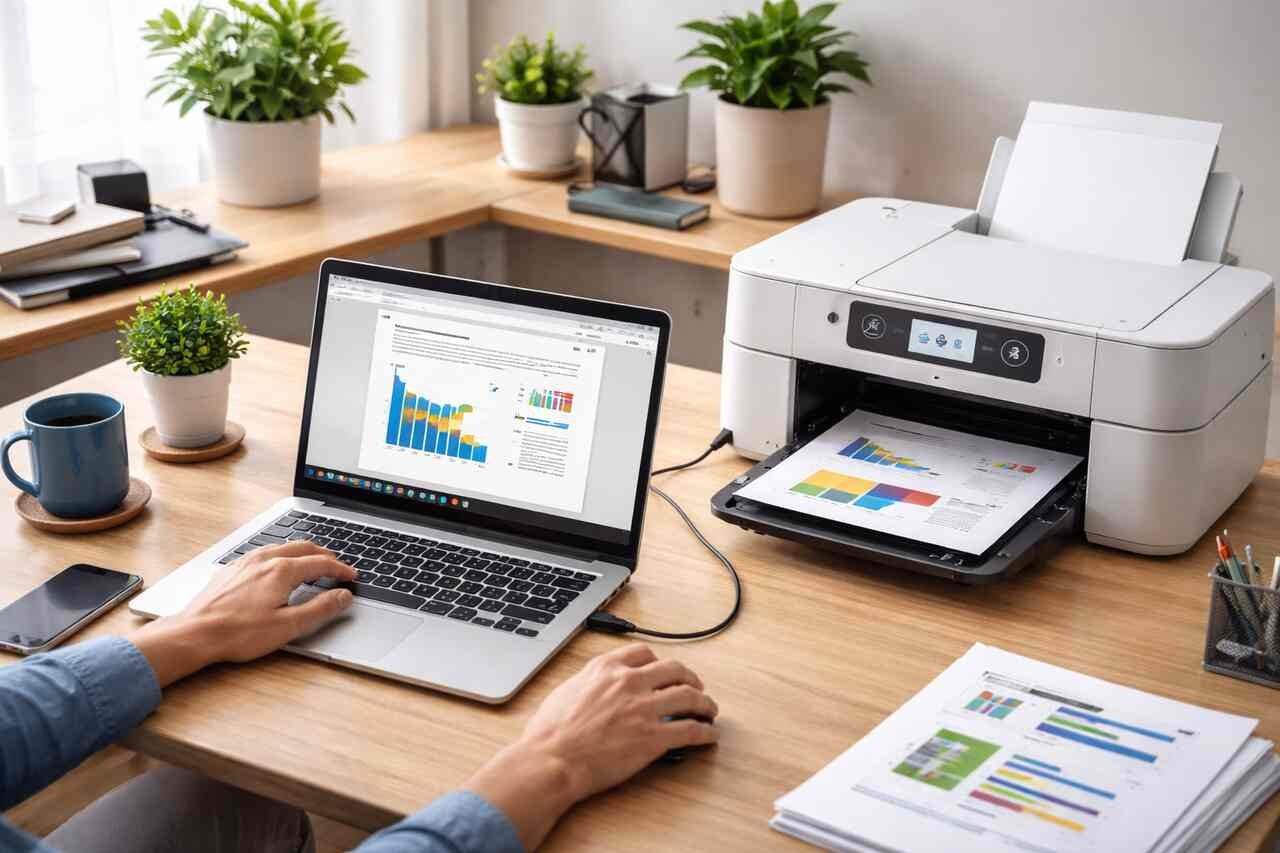
Learning how to print on Chromebook is essential for students, professionals, and home users who rely on ChromeOS for daily tasks. Chromebooks are designed for speed, simplicity, and cloud-based workflows, which means printing works differently compared to Windows or macOS devices. Understanding the correct setup process ensures documents, images, and web pages print reliably without frustration. This guide explains every supported printing method in clear steps, covering wireless printers, USB connections, and cloud-based options so you can print efficiently from any Chromebook model.
Connect a Printer Using Wi-Fi
Printing wirelessly is the most common and convenient method for Chromebook users. ChromeOS supports network printers that are connected to the same Wi-Fi network as the Chromebook, allowing direct communication without cables.
To begin, confirm the printer is powered on and connected to your Wi-Fi network. Most modern printers include a built-in wireless setup menu or companion mobile app that helps complete the connection. The Chromebook automatically scans for available printers once both devices share the same network.
Wireless printing works best with printers that support standard network protocols such as IPP or Wi-Fi Direct. Some printers may require firmware updates to ensure compatibility. Once connected, the printer becomes available system-wide and does not need to be reconfigured for each print job.
Add a Printer Through Chromebook Settings
Adding the printer through system settings ensures ChromeOS recognizes it correctly and applies the proper drivers automatically. This method works for most home and office printers.
Open Chromebook Settings, select Advanced, then choose Printing, and open Printers. ChromeOS scans the network and lists detected printers. Select the correct device and click Add. The printer is now saved to your Chromebook profile.
If the printer does not appear automatically, you can add it manually by entering the printer name, IP address, protocol, and queue. This method is useful in offices, schools, or shared networks where printers are not publicly discoverable.
Print Directly From Chrome Browser
The Chrome browser acts as the primary printing interface on a Chromebook. Most printing tasks are initiated directly from the browser rather than a separate print application.
Open the document, webpage, or image you want to print. Press Ctrl + P or select Print from the browser menu. The print preview window displays layout, destination printer, color options, and page range.
The browser-based print dialog allows fine control over margins, scaling, orientation, and paper size. These settings ensure accurate output whether you are printing text documents, spreadsheets, or graphics.
Print Files From Google Docs, Sheets, and Slides
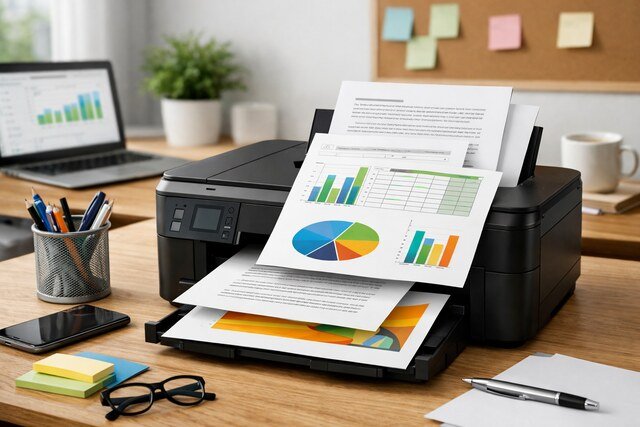
Google Workspace apps integrate deeply with ChromeOS, offering seamless printing without additional setup. Files stored in Google Drive are optimized for Chrome printing workflows.
Open the file in Google Docs, Sheets, or Slides. Click File, then select Print. The Chrome print preview opens automatically with recommended settings for that file type.
These apps support advanced options such as header formatting, gridline control, and speaker notes. Printing directly from these tools ensures formatting remains consistent across devices and printers.
Connect a Printer Using USB Cable
Some users prefer a wired connection for reliability or when Wi-Fi is unavailable. ChromeOS supports many USB printers without additional software.
Connect the printer to the Chromebook using a USB cable. Turn on the printer and wait for ChromeOS to detect it. A notification usually appears confirming the printer is ready.
USB printers are automatically added to the printer list and function like network printers. This option is ideal for temporary setups, travel, or older printers without wireless support.
Configure Advanced Printer Settings
Advanced settings help fine-tune print quality, paper handling, and color output. These options are especially important for professional documents or images.
Access advanced settings from the print preview window by clicking More Settings. Options may include DPI resolution, paper tray selection, duplex printing, and color profiles.
Not all printers expose the same advanced options. Availability depends on printer capabilities and ChromeOS driver support. Testing settings with a sample print helps avoid wasted paper.
Use Cloud Printing Alternatives
Although Google Cloud Print was discontinued, Chromebook users still benefit from cloud-enabled printing solutions offered by printer manufacturers.
Many printers include proprietary cloud services that allow printing via email or web dashboards. These services let users send documents remotely without direct network access.
Cloud printing is useful in remote work environments, shared offices, and educational institutions. Security settings should be reviewed to prevent unauthorized access.
Print Android App Content on Chromebook
Chromebooks that support Android apps can print content directly from compatible applications installed from the Play Store.
Open the Android app and locate its print or share option. Select Print and choose the desired printer. The ChromeOS print dialog handles the output.
This method allows printing from PDF readers, note-taking apps, and design tools that are not browser-based. App support varies, so print availability depends on the developer’s implementation.
Troubleshoot Printer Connection Issues
Printer issues often stem from network misconfiguration or outdated software. Identifying the cause helps restore printing quickly.
Start by confirming the Chromebook and printer are on the same Wi-Fi network. Restart both devices and check for system updates. Removing and re-adding the printer often resolves detection problems.
Firewall restrictions, guest networks, and enterprise-managed settings can block printer discovery. In these cases, manual IP configuration or administrator assistance may be required.
Fix Print Quality and Formatting Problems
Poor print quality or incorrect formatting can waste time and supplies. ChromeOS provides tools to address these issues.
Check print preview settings such as scale, margins, and paper size. Mismatched settings often cause clipped text or incorrect alignment. Selecting the correct paper type improves color and clarity.
Ink levels, toner quality, and printer maintenance also affect output. Running printer self-cleaning routines can resolve streaking or faded text.
Print From Chromebook in School or Work Environments
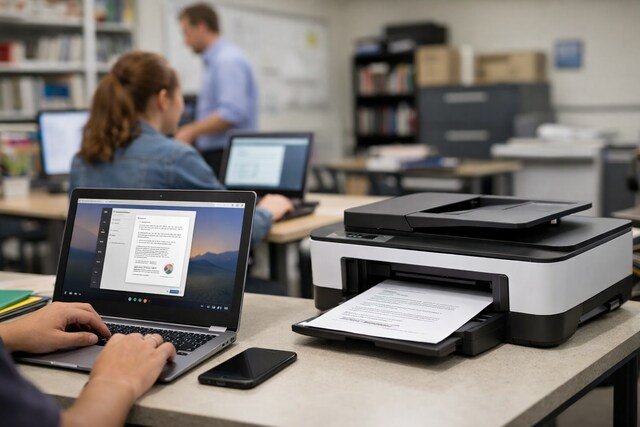
Schools and workplaces often use managed Chromebooks with shared printers. Printing in these environments follows specific policies.
Managed devices usually auto-install approved printers through administrator settings. Users simply select the correct printer from the list when printing.
Quota limits, authentication prompts, and release stations may apply. Understanding organizational print policies ensures compliance and avoids failed print jobs.
Compare Chromebook Printing Methods
| Printing Method | Connection Type | Best Use Case | Setup Difficulty |
| Wi-Fi Network Printer | Wireless | Home and office printing | Easy |
| USB Printer | Wired | Temporary or offline use | Very Easy |
| Cloud Printing Services | Internet-based | Remote printing | Moderate |
| Android App Printing | App-dependent | Specialized apps | Easy |
Supported Printer Types for Chromebook
| Printer Category | Compatibility Level | Notes |
| Inkjet Printers | High | Most models supported |
| Laser Printers | High | Ideal for documents |
| All-in-One Printers | High | Scan and copy may vary |
| Legacy Printers | Limited | USB often required |
Conclusion
Understanding how to print on Chromebook allows users to take full advantage of ChromeOS flexibility. Whether using a wireless printer, USB connection, or cloud-based solution, Chromebooks support reliable and efficient printing for home, school, and work. By following the correct setup steps and adjusting print settings carefully, users can produce consistent results without additional software or drivers. Mastering these printing methods ensures your Chromebook remains a practical and productive device for everyday tasks.
Explore more insightful and valuable content on our blog journalingtechniques! Stay updated with helpful tips, expert advice, and in-depth articles that enhance your knowledge.
FAQ’s
Yes, using a USB cable allows direct printing without a wireless network.
No, ChromeOS includes built-in support for most printers and installs drivers automatically.
The printer may be on a different network, turned off, or blocked by firewall settings.
Yes, PDFs open in the Chrome browser and print like any other document.
Yes, if the printer supports duplex printing, the option appears in advanced settings.
Yes, images can be printed from the browser, Google Photos, or Android apps with quality settings available.
