







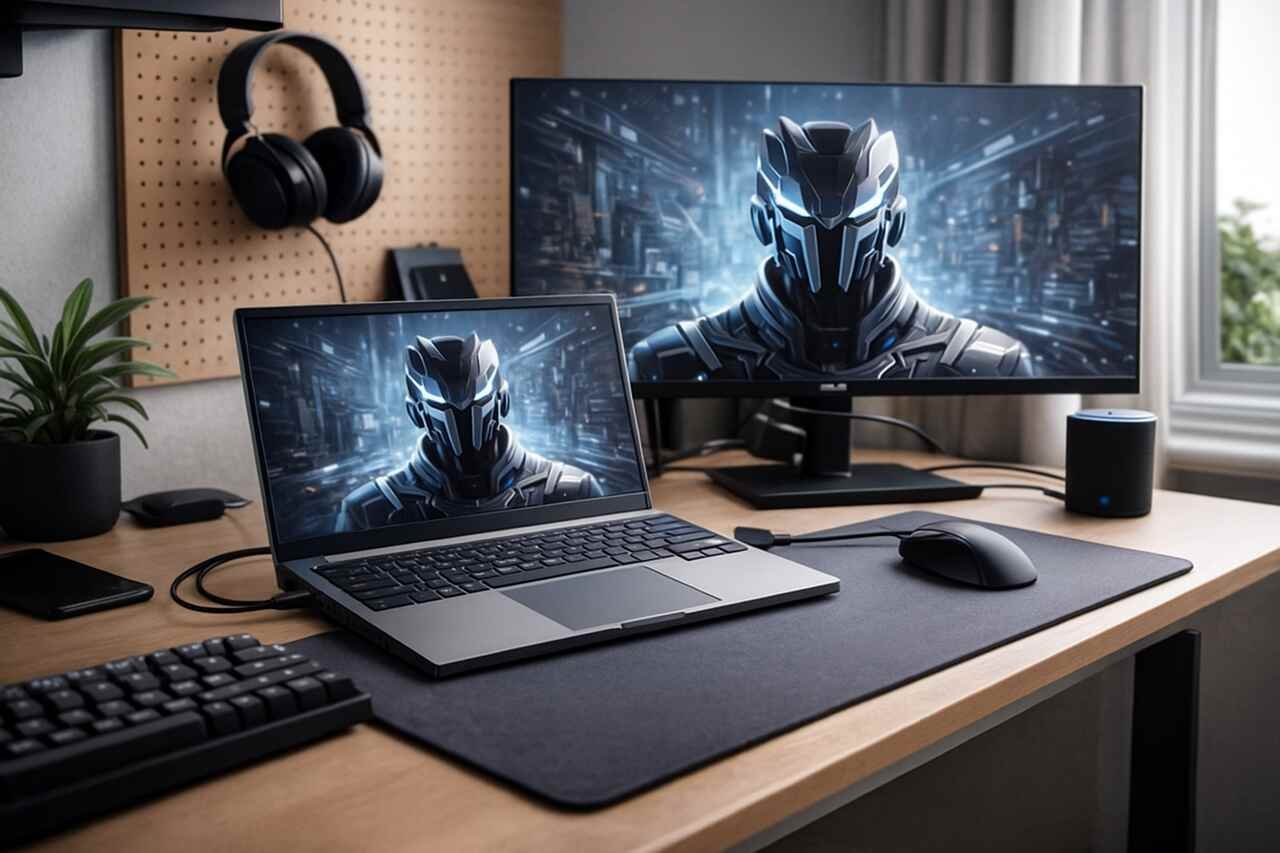
The ASUS Zephyrus G14 has become one of the most sought-after compact gaming laptops thanks to its blend of power, portability, and design precision. This guide walks you through each major step you need to take to get the most out of the device, from initial setup to advanced optimization. Every section gives practical actions, supporting context, and deeper explanations across multiple aspects of the laptop’s hardware and software experience.
Optimize the Initial Setup of the ASUS Zephyrus G14
Setting up the ASUS Zephyrus G14 properly ensures smooth performance from the moment it boots. Start by completing the Windows onboarding process, creating your user account, and enabling updates. This reduces compatibility issues and allows the system to configure drivers and essential services.
As you set up the laptop, check display settings, activate Wi-Fi, and connect to your Microsoft account to sync preferences. It is also helpful to keep the power adapter plugged in during the first boot so that performance profiles initialize correctly. The device often requires several updates after the initial connection to the internet, including firmware improvements and GPU patches.
A well-planned initial setup reduces system instability, enhances battery efficiency, and creates a stable foundation for future customization. Many performance issues people experience later can be avoided simply by letting all Windows and system updates complete during the first few hours of use.
Adjust Power Configuration
Open the power menu and choose the preferred performance mode. For high workloads, Turbo or Performance mode ensures maximum GPU and CPU operation. For everyday tasks, Silent mode keeps the fan noise low and extends battery life.
Configure Display Options
Set the refresh rate based on your model’s supported output. Higher refresh rates increase motion clarity for gaming, while lower refresh rates can reduce battery drain when mobility is the priority.
Install Essential Drivers and Tools for Better Performance
Once the initial setup is complete, installing the correct drivers ensures the ASUS Zephyrus G14 operates at full capability. Update the graphics drivers from AMD or NVIDIA, depending on your configuration. Keeping these drivers current prevents stuttering, improves efficiency, and unlocks new performance features for modern applications.
Additional system drivers, such as chipset, audio, and I/O drivers, should also be installed to maintain system stability. These updates help solutions like Dolby Atmos, adaptive power distribution, and touchpad responsiveness work properly. Neglecting these updates may lead to crashes, overheating, or audio issues.
Installing tools like the preloaded control software improves your ability to customize system behavior. This control hub offers features such as lighting adjustments, power management, fan tuning, and performance tracking. Having these tools ready early gives you more control over how the laptop behaves throughout daily use.
Update Graphics Software
Download the latest driver from the official GPU provider. Use the clean-install option to overwrite outdated or corrupted files, ensuring games and creative apps run smoothly.
Install Support Utilities
Install system utilities to adjust cooling, keyboard lighting, and power profiles. These tools offer direct control over features that Windows does not manage natively.
Customize Gaming Settings for Higher FPS

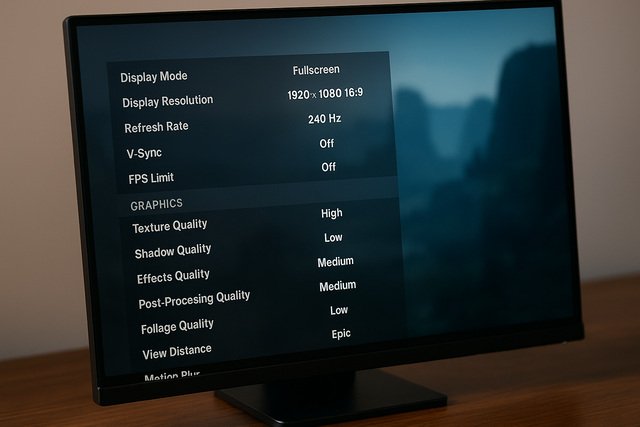
After the software foundation is ready, optimize your games for the best performance on the ASUS Zephyrus G14. Start by selecting appropriate graphics presets. High or medium settings often balance quality and smoothness better than maxed-out settings, especially in competitive titles.
Adjusting shadows, anti-aliasing, and texture quality leads to significant improvements in frames per second without noticeably reducing visual clarity. The G14’s GPU handles modern games well, but fine-tuning settings ensures consistent frame pacing and avoids thermal throttling.
Contextual optimization matters as well. For example, fast-paced shooters benefit from higher refresh rates, while visually rich single-player titles may look better with enhanced textures. Combine these adjustments with performance mode in the control software to maintain stable temperatures and peak responsiveness.
Tune In-Game Effects
Lower motion blur, volumetric fog, and post-processing effects to reduce GPU load. This frees up resources for essential rendering tasks.
Adjust Resolution Scaling
If a game struggles to maintain smooth performance, use resolution scaling or FSR/DLSS. These technologies enhance frame rates while preserving image quality.
Enhance Cooling and Thermal Management
Effective cooling is crucial for maintaining performance on the ASUS Zephyrus G14. Begin by selecting an appropriate fan mode in the control software. Turbo mode prioritizes cooling, while Performance mode balances heat output with reduced noise. Silent mode is ideal for light workloads but not recommended during gaming.
Physical setup also affects thermals. Keep the laptop on a flat surface to avoid blocking ventilation. Using a cooling pad helps maintain lower temperatures during long gaming sessions. Regularly clean dust from exhaust ports to prevent heat buildup.
Managing heat improves system longevity and ensures consistent performance. Excessive temperatures can cause throttling, reduced frame rates, and faster battery wear. By maintaining airflow and proper thermal configurations, you preserve both speed and hardware durability.
Choose Correct Fan Settings
Set the fans to Turbo mode for gaming or heavy workloads. High-speed cooling reduces heat accumulation and prevents performance dips.
Improve Airflow Conditions
Elevate the rear of the laptop slightly or use a cooling pad. Better airflow helps the internal fans push heat out more effectively.
Personalize Keyboard, Lighting, and Interface Controls
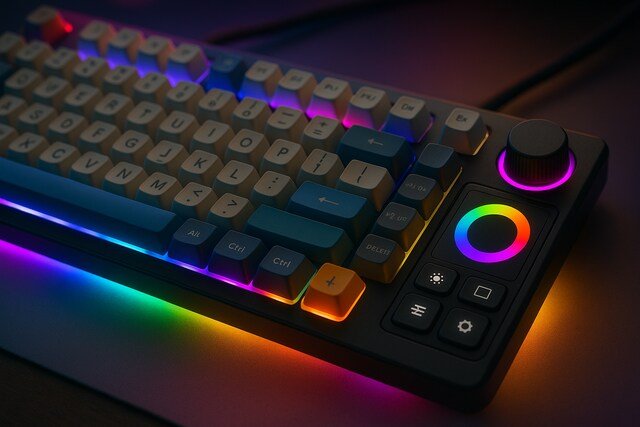
Personalizing the ASUS Zephyrus G14 enhances usability and creates a more intuitive experience. Begin by adjusting keyboard backlighting through the control software. Some models offer per-key lighting effects while others use zone-based illumination, allowing you to choose brightness and animations.
Customize key functions through shortcuts, macros, or hotkeys. You can assign actions like launching applications, adjusting volume, or switching performance profiles instantly. This improves workflow efficiency and makes the laptop feel tailored to your habits.
Design-oriented adjustments also influence comfort. Changing trackpad sensitivity, touch gesture behavior, and sound output personalization brings a refined, cohesive user experience. These options enable better navigation and create a feeling of ownership over the device.
Adjust Keyboard Illumination
Choose a lighting effect that suits your environment. Lower brightness saves battery life, while higher brightness improves visibility during gaming.
Customize Hotkey Actions
Assign specific commands to custom keys to streamline tasks. This speeds up actions such as launching software or switching modes without navigating menus.
Improve Battery Performance and Mobility
The ASUS Zephyrus G14 is known for its balance of mobility and power. Start by switching to silent or balanced mode when unplugged. Lowering screen brightness and disabling RGB lighting also extends battery life significantly during travel.
Modifying background processes reduces unnecessary drain. Close unused apps, limit startup programs, and activate battery saver mode when needed. Disable unused wireless components like Bluetooth if they are not actively in use.
Understanding behavior differences between plugged-in and battery modes helps set realistic expectations. The laptop uses more aggressive power management when unplugged, leading to reduced GPU power but longer runtime. Optimizing features around this ensures smoother mobility-focused usage.
Optimize Display Consumption
Reduce screen brightness or change the refresh rate to a lower option when on battery power. Displays consume the most energy during normal use.
Control Background Activity
Disable apps running silently in the background. This reduces CPU load, increases battery life, and decreases heat production.
Maintain Long-Term System Health and Longevity
Keeping the ASUS Zephyrus G14 in top condition requires routine maintenance. Start by regularly updating Windows, drivers, and support utilities. These updates improve stability, fix bugs, and enhance performance even years after purchase.
Clean the vents every few months to prevent dust buildup, which can restrict airflow. Monitor storage usage and remove large temporary files to avoid slowdown. Consider running a disk check occasionally to maintain healthy drive performance.
Long-term care preserves performance and prevents avoidable failures. By paying attention to updates, cleanliness, and digital housekeeping, the laptop maintains its fast and responsive nature throughout its lifespan.
Keep Software Updated
Regularly install new firmware and driver updates to improve efficiency. These updates often refine thermal behavior and add new features.
Monitor Storage and Memory
Clear unnecessary files, uninstall unused apps, and keep at least 20 percent of storage free. This ensures the system processes data efficiently.
Comparison for Performance Modes
| Mode | Best Use Case | Noise Level | Battery Impact | Performance Output |
| Turbo | Gaming, rendering | High | High | Maximum |
| Performance | Everyday use, moderate gaming | Medium | Medium | High |
| Silent | Browsing, media | Low | Low | Moderate |
Specifications Overview for Common Models
| Feature | Typical Value | Description |
| Display | 14-inch QHD or FHD | Offers high refresh rates and color accuracy |
| CPU | AMD Ryzen series | Provides strong multi-core performance |
| GPU | NVIDIA or AMD dedicated options | Handles modern games and creative tools |
| Weight | Around 3.5 lbs | Balances portability with power |
Conclusion
The ASUS Zephyrus G14 stands out by blending portability, performance, and customization options in a compact form. By following structured steps such as adjusting power settings, optimizing gaming performance, improving cooling, and maintaining long-term health, you get the most from this exceptional laptop. Every configuration choice contributes to smoother operation, longer lifespan, and a more personalized computing experience that adapts to both gaming and productivity needs.
Explore more insightful and valuable content on our blog journalingtechniques! Stay updated with helpful tips, expert advice, and in-depth articles that enhance your knowledge.
FAQ’s
Not when proper cooling modes and airflow practices are used. Turbo or Performance mode, combined with clean vents, keeps temperatures stable.
With reduced brightness, balanced mode, and light workloads, the laptop can last many hours. Heavy tasks shorten runtime.
Yes, the keyboard has well-spaced keys and responsive feedback, making it suitable for extended work or gaming.
Some models offer one soldered slot and one expandable slot. Check your specific configuration before upgrading.
Lowering shadows, anti-aliasing, and post-processing effects provide the biggest boost without hurting visual quality.
Yes, it supports multiple external displays through HDMI and USB-C connections depending on the model.


