







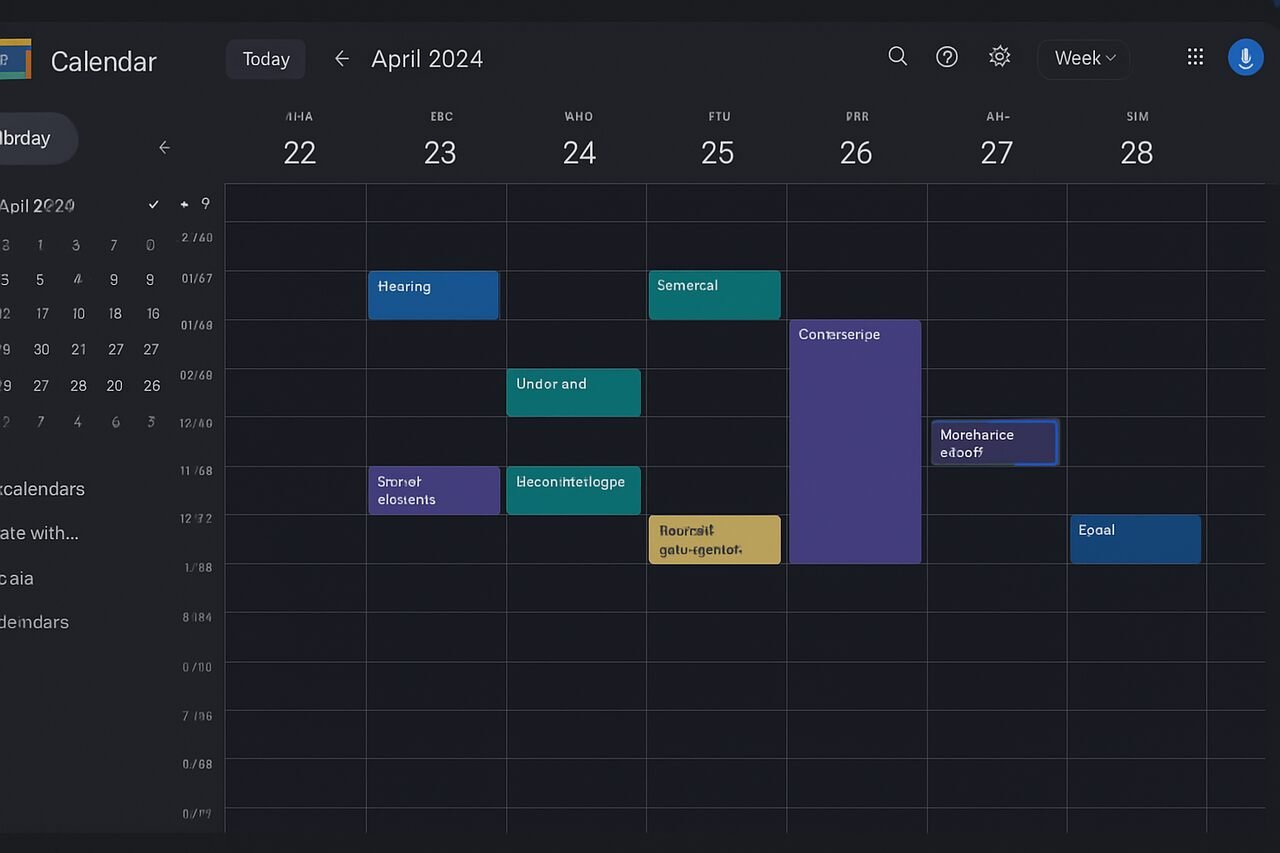
Google Calendar dark mode has become an essential feature for users who want to reduce eye strain, extend battery life, and navigate their schedules more comfortably in low-light environments. Whether you’re working late at night, using your device outdoors, or simply prefer a darker interface, learning how to activate and customize Google Calendar dark mode gives you more control over your productivity setup. This guide walks you through every configuration detail on web, Android, iPhone, and desktop devices while providing practical recommendations to help you use the feature effectively throughout all your workflows.
Enable Google Calendar Dark Mode on Android
Activating dark mode on Android helps your Google Calendar automatically sync with your system’s appearance settings. This ensures that the interface adjusts seamlessly based on your phone’s overall display preference. The process is straightforward and requires only a few steps through the built-in theme controls.
You’ll find the appearance settings within the Calendar app’s menu, allowing you to select light mode, dark mode, or system-default mode. When paired with Android’s adaptive brightness features, this setting provides a comfortable visual layout for scheduling, notifications, and event browsing.
Because Google Calendar is deeply integrated into Android, dark mode also affects widgets, event pop-ups, and notification cards. This background-level consistency helps maintain smooth readability while preventing the sharp contrast of white screens when switching between apps.
Choose System Default on Android
Selecting system default lets your Google Calendar follow the appearance mode you use at the device level. If your phone automatically switches between day and night mode, your calendar will adjust behind the scenes without requiring manual changes.
Manually Select Dark Mode on Android
If you want Google Calendar to remain in dark mode at all times, you can override the system setting. This prevents unexpected transitions and ensures a steady low-light appearance during long work sessions.
Turn on Google Calendar Dark Mode on iPhone

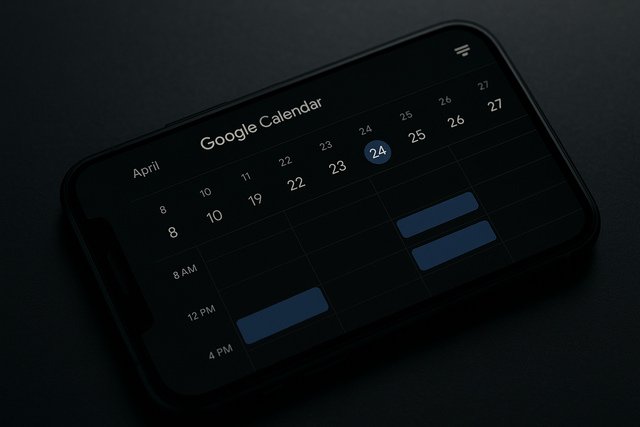
Google Calendar on iPhone uses a slightly different structure because it inherits appearance settings directly from iOS. Enabling dark mode ensures that the interface blends seamlessly with the rest of your device’s apps, creating a uniform visual environment.
The calendar app responds to iOS’s built-in dark theme settings and adjusts instantly when your phone switches appearance modes. This provides a smooth, eye-friendly experience whether you are browsing events, editing appointments, or checking reminders.
When dark mode is active on iPhone, Google Calendar displays events, labels, and calendars with improved contrast, making it easier to review color-coded categories without overwhelming brightness.
Use iOS Automatic Appearance
iOS allows you to automate appearance shifts based on sunrise and sunset. Google Calendar follows this schedule, transitioning between modes seamlessly for natural visual comfort.
Keep Dark Appearance Always On
You can keep dark mode active at all times for a consistently low-light user experience. This is especially useful for users who prefer minimal glare across all applications.
Activate Google Calendar Dark Mode on Desktop Browser
On desktop, Google Calendar does not include a built-in toggle. Instead, it follows your browser or operating system settings. This creates a unified experience across all web interfaces and helps users maintain visual consistency no matter which site they visit.
Many modern browsers support dark mode at the system or browser level. Once enabled, the Google Calendar web interface adapts its color scheme automatically. Some browsers also allow forced dark mode through experimental flags, offering additional flexibility.
Desktop dark mode also benefits users who manage long workdays on large screens. The reduced luminosity decreases visual strain and makes long-term task planning more comfortable.
Adjust System-Level Appearance on Windows or macOS
Switch your operating system theme to dark, and Google Calendar will follow this setting automatically when accessed through supporting browsers.
Use Browser-Specific Dark Mode Functions
Chromium-based browsers and Firefox include their own dark mode preferences. Enabling them ensures that calendar pages align with your preferred browsing environment.
Customize Google Calendar Interface for Dark Mode
Once dark mode is enabled, you can further optimize your Google Calendar layout for peak usability. Customization options such as color coding, event visibility adjustments, and density settings help improve readability within the darker interface.
You can refine how events appear by selecting distinct color palettes for work, personal, and shared calendars. The contrast ensures that each category stands out clearly even against darker backgrounds. Adjustments to view modes, such as switching between daily and weekly layouts, also affect how information is displayed.
These customization enhancements help ensure accessibility, clarity, and visual balance. They allow heavy Google Calendar users to tailor the interface according to their specific workflows and viewing patterns.
Adjust Event Color Codes
Selecting high-contrast colors helps significant events stay visible without clashing with the dark theme. This makes quick scanning and categorization much easier.
Modify View Density and Layout
The compact, comfortable, or responsive view modes change how events are spaced and presented. These layout options enhance readability depending on your screen size.
Improve Productivity with Google Calendar in Dark Mode
Dark mode is not just about aesthetics. It supports improved focus, longer usage times, and reduced strain during intensive scheduling sessions. When combined with organizational techniques, it enhances daily workflow efficiency.
A darker interface helps maintain attention by reducing the visual noise that bright backgrounds can create. It also supports longer planning sessions during nighttime work, allowing professionals and students to maintain productivity without harsh lighting.
Using dark mode with structured scheduling techniques like time blocking, reminders, and color-coded categories strengthens your overall organizational system. This creates a more intuitive planning experience throughout the week or month.
Use Time Blocking in a Dark Environment
Time blocking becomes easier to interpret with contrasting colors against a dark background, allowing you to visualize priorities more clearly.
Enable Smart Notifications
Dark mode pairs well with notification cards that appear less intrusive yet remain noticeable for tasks, meetings, or deadlines.
Optimize Battery and Eye Comfort Through Dark Mode
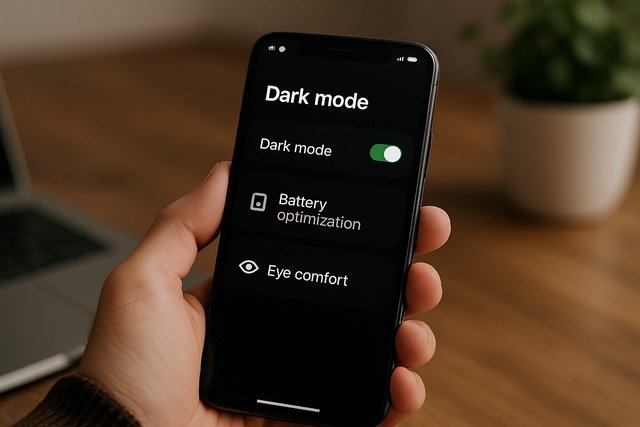
Modern mobile displays benefit significantly from darker interfaces. Google Calendar dark mode reduces the energy required to illuminate your screen, especially on OLED and AMOLED devices, extending battery life for heavy users.
Dark mode also minimizes eye fatigue by reducing blue light levels and overall brightness exposure. This becomes important for users who rely on their calendars throughout the day, especially during early mornings or at night.
Beyond comfort, dark mode enhances long-term usability. Less visual strain leads to fewer headaches, better screen focus, and an improved digital work environment.
Reduce Blue Light Exposure
The darker interface supports longer usage with fewer discomfort symptoms, enhancing late-night planning or multitasking.
Improve Battery Efficiency
On screens where dark pixels require less power, switching to dark mode helps preserve battery life during prolonged usage.
Troubleshoot Google Calendar Dark Mode Issues
Despite its simplicity, dark mode can occasionally fail to activate because of outdated app versions, unsupported browsers, or conflicting system settings. Troubleshooting helps you quickly restore your preferred interface.
Many issues arise from older software versions, so updating your device or browser ensures proper compatibility. Clearing app or browser cache also helps reset appearance conflicts. Restarting your phone or computer is often enough to refresh UI settings.
If dark mode still fails, checking system-level appearance preferences typically resolves the issue. Ensuring that both device and app settings align guarantees a consistent experience.
Update Apps and Browsers
Keeping your Calendar app or browser up to date ensures that the dark mode settings operate as intended.
Clear Cache or Reset Preferences
Resetting stored data removes older style sheets or conflicting display configurations that interfere with dark mode activation.
Google Calendar Dark Mode Availability by Device
| Device Type | Manual Toggle | Follows System Mode | Browser Required | Notes |
| Android App | Yes | Yes | No | Offers flexible appearance options |
| iPhone App | No | Yes | No | Dependent on iOS settings |
| Desktop Browser | No | Yes | Yes | Adapts to system or browser theme |
| ChromeOS | No | Yes | Yes | Integrates with ChromeOS UI theme |
Feature Behavior Across Platforms
| Feature | Android | iPhone | Desktop |
| Dark Widgets | Yes | Limited | Not applicable |
| Event Color Accuracy | High | High | High |
| Battery Savings | High on OLED | Moderate | Not applicable |
| Appearance Automation | Full | Full | Based on OS/browser |
Conclusion
Google Calendar dark mode delivers a more comfortable, visually balanced, and energy-efficient scheduling experience across mobile, browser, and desktop environments. Activating it enhances readability, improves focus, and reduces eye strain, especially for long-term planning sessions or evening use. With easy configuration options, customization controls, and cross-device compatibility, it allows every user to create a smooth and optimized calendar workflow. Whether you prefer system automation or manual theme settings, dark mode helps you maintain clarity, productivity, and visual comfort throughout your daily routine.
Explore more insightful and valuable content on our blog journalingtechniques! Stay updated with helpful tips, expert advice, and in-depth articles that enhance your knowledge.
FAQ’s
No. Google Calendar on iPhone follows the appearance settings you select in iOS.
Desktop versions rely on browser or operating system appearance themes. If your system is not in dark mode, the calendar will remain light.
Yes. On devices with OLED or AMOLED screens, dark mode uses less power and prolongs battery life.
No. Event colors stay the same, but contrast improves due to the darker background.
You may enable experimental dark mode flags or use a browser extension that forces darker themes.
Yes on Android. Widget dark mode may be limited depending on iOS restrictions.


