







Highlights
- I started by updating my system and drivers because I learned early that outdated software silently kills gaming performance without any warning signs.
- After that, I adjusted Windows performance settings, and I immediately felt smoother gameplay once background tasks stopped stealing power from my games.
- I went into my graphics card settings and focused purely on performance, which made my games feel more responsive even before touching in game settings.
- When I checked my hardware balance, I realized RAM and storage mattered more than I expected, and upgrading them reduced stutters I thought were normal.
- I stopped using Ultra graphics blindly and learned how smart in game settings gave me higher FPS without ruining visual quality.
- Cleaning my PC and fixing airflow surprised me the most, because lower temperatures helped my system stay fast during long gaming sessions.
- Finally, I made monitoring a habit, and that helped me catch performance drops early instead of wondering why my games suddenly felt slow.
Introduction
Optimizing a PC for gaming is not about chasing expensive upgrades only. It is about aligning your system settings, hardware behavior, and software environment so your games run smoother, faster, and more consistently. I have personally optimized multiple gaming PCs over the years, from budget builds to high end rigs, and the biggest performance gains often came from smart configuration rather than raw power.
In this guide, I will walk you through exactly how I optimize a PC for gaming. I will speak to you directly, explain what works in real situations, and help you avoid common mistakes that hurt performance. Each step is practical, repeatable, and focused on real gaming results rather than theory.
Update the Operating System and Core Drivers
Keeping your operating system and drivers updated is the first thing I always do before touching anything else. Outdated software silently limits performance, creates compatibility problems, and causes random stutters during gameplay.
When I optimize a PC for gaming, I start by ensuring the system runs the latest stable version of Microsoft Windows. Updated system files improve memory handling, storage access, and CPU scheduling, which directly affects how games load and run. I have seen games gain noticeable stability just from a clean update.
Drivers are equally important. Graphics drivers from NVIDIA, AMD, or Intel are optimized for new games and performance fixes. Every time I update drivers, I check release notes and choose the stable version rather than beta to avoid crashes.
Update Windows the Right Way
I always install updates manually and restart immediately after. Delaying restarts can leave background processes running that reduce gaming performance later.
Install Clean Graphics Drivers
Using a clean installation option removes old driver conflicts. This step alone has fixed micro stutters on many systems I worked on.
Adjust Windows Settings for Maximum Performance

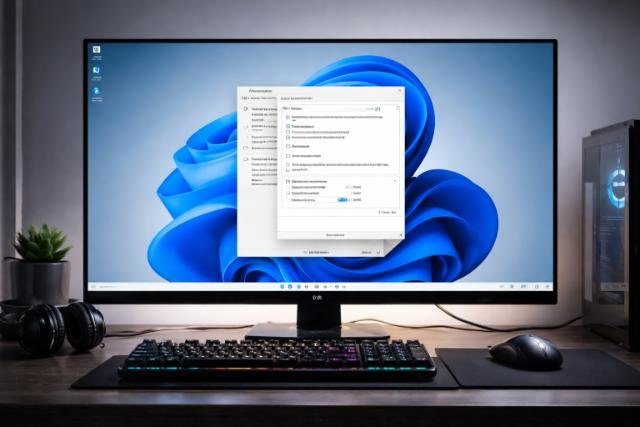
Once the system is updated, I fine tune Windows settings. This step is critical and often ignored. Windows is designed for general use, not gaming performance.
I go into power settings and select High Performance or Ultimate Performance when available. This prevents CPU throttling and ensures full clock speeds during gaming sessions. On laptops, this step alone can double frame stability in demanding titles.
I also disable background features that steal resources. Notifications, animations, and unnecessary startup apps all compete with your games. When I removed these on my personal PC, frame time consistency improved noticeably, especially in open world games.
Configure Power and Startup Settings
I disable startup programs that are not essential. Fewer background apps mean more CPU and RAM for games.
Reduce Visual Effects
Turning off transparency and animations reduces system overhead without affecting gameplay visuals.
Optimize Graphics Card Settings for Games
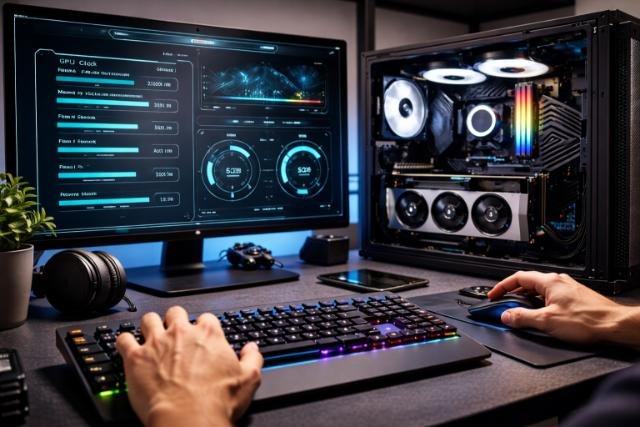
Graphics card settings play a massive role in gaming performance. I always configure these settings globally before launching any game.
In the control panel of your GPU software, I prioritize performance over quality. Texture filtering, power management mode, and shader cache settings all affect frame delivery. I personally set power management to maximum performance for smoother gameplay.
I also enable low latency or reflex options when available. These settings reduce input delay, which is especially important for competitive games. From my experience, this makes games feel more responsive even if FPS stays the same.
Set Global Performance Profiles
Global settings ensure every game benefits without manual tuning each time.
Enable Low Latency Features
Reducing render queue delay improves responsiveness in shooters and fast paced games.
Upgrade and Configure Hardware Correctly
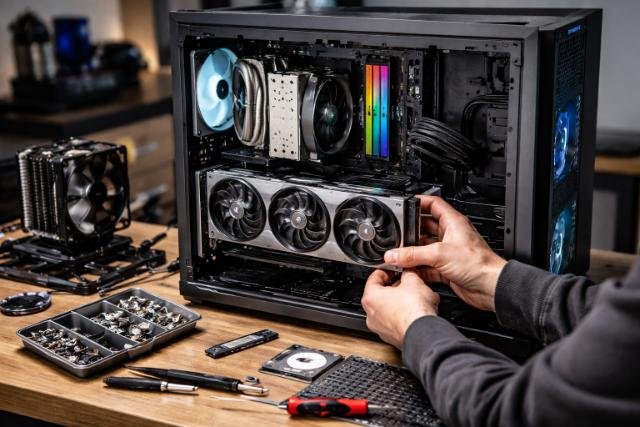
Hardware upgrades should be strategic. I never upgrade blindly. Instead, I identify the bottleneck first.
RAM upgrades often deliver better results than expected. Moving from 8 GB to 16 GB reduced stuttering on my system in modern games. Using dual channel memory also improves CPU communication and frame consistency.
Storage matters too. Installing games on an SSD instead of a hard drive significantly reduces load times and texture pop in. Even budget SATA SSDs outperform traditional drives for gaming.
Balance CPU, GPU, and RAM
A powerful GPU cannot compensate for slow memory or an overloaded CPU.
Choose SSD for Game Installation
Faster storage improves loading, streaming, and overall smoothness during gameplay.
Optimize In Game Graphics Settings Properly
This is where most gamers lose performance unnecessarily. Ultra settings rarely offer meaningful visual improvement compared to High.
I always start by lowering shadows, reflections, and motion blur. These settings consume massive GPU resources. On my own system, reducing shadows from Ultra to High gained over 15 percent FPS with minimal visual loss.
Resolution scaling is another powerful tool. Running at slightly lower internal resolution with sharpening enabled often looks identical but runs far smoother.
Prioritize Performance Heavy Settings
Shadows, volumetric effects, and reflections should be tuned first.
Use Resolution Scaling Wisely
Balanced scaling improves FPS without hurting visual clarity.
Improve Cooling and Airflow for Stable Performance
Thermal performance directly affects gaming. When components overheat, they slow down automatically.
I clean my PC every few months. Dust buildup raises temperatures and reduces airflow. After cleaning my case and fans, I noticed lower CPU temperatures and more stable clock speeds during long gaming sessions.
Good airflow keeps components cool. Proper fan placement ensures hot air exits the case efficiently. Even adding one exhaust fan can improve performance stability.
Clean Internal Components Regularly
Dust free systems maintain higher sustained performance.
Optimize Fan Placement
Balanced intake and exhaust airflow prevents heat buildup.
Maintain and Monitor System Performance Over Time
Optimization is not a one time task. I regularly monitor system performance to ensure nothing degrades over time.
I use performance overlays in games launched through Valve Steam to track FPS, CPU usage, and GPU load. Sudden changes usually indicate background issues or driver problems.
Routine maintenance like updating drivers, scanning for malware, and checking storage health keeps the system running smoothly long term.
Monitor Performance Metrics
Tracking usage helps identify problems before they affect gameplay.
Schedule Regular Maintenance
Small routine checks prevent major performance drops later.
Performance Impact Summary
| Optimization Area | Performance Benefit | Difficulty Level |
| Driver Updates | Higher FPS and stability | Easy |
| Windows Settings | Reduced stutter | Easy |
| GPU Configuration | Lower input lag | Medium |
| Hardware Upgrades | Major performance boost | Medium |
| Cooling Improvements | Stable clock speeds | Medium |
Final Thoughts
Optimizing a PC for gaming is about understanding how each component works together. From my experience, the biggest improvements come from proper configuration, not expensive upgrades. When you align your system settings, hardware behavior, and cooling, games feel smoother, more responsive, and more enjoyable.
If you follow these steps patiently, you will unlock performance that already exists in your PC. I have done this many times, and every time the results were worth the effort.
Explore more insightful and valuable content on our blog journalingtechniques! Stay updated with helpful tips, expert advice, and in-depth articles that enhance your knowledge.
FAQ’s
I recommend reviewing settings every few months or after major updates.
Yes, reducing background activity and improving power settings has a direct impact.
No, proper optimization can deliver strong performance without overclocking.
Start with global settings, then fine tune per game if needed.
Yes, lower temperatures allow components to maintain full performance longer.


